Setup Guide
Follow these 4 steps to start copying trades
Vantage is a regulated forex broker that offers competitive spreads, fast execution, and the vSocial copy trading platform. You'll need a Vantage account to use the TradeTeller Auto Copier.
Why Vantage?
- Regulated broker with ASIC, FCA, and CIMA licenses
- Built-in vSocial copy trading platform
- Low spreads starting from 0.0 pips
- 24/7 customer support
Go to Vantage Website
Click the link below to open the Vantage registration page. Look for the green "Open Live Account" or "Start Trading" button in the top right corner.
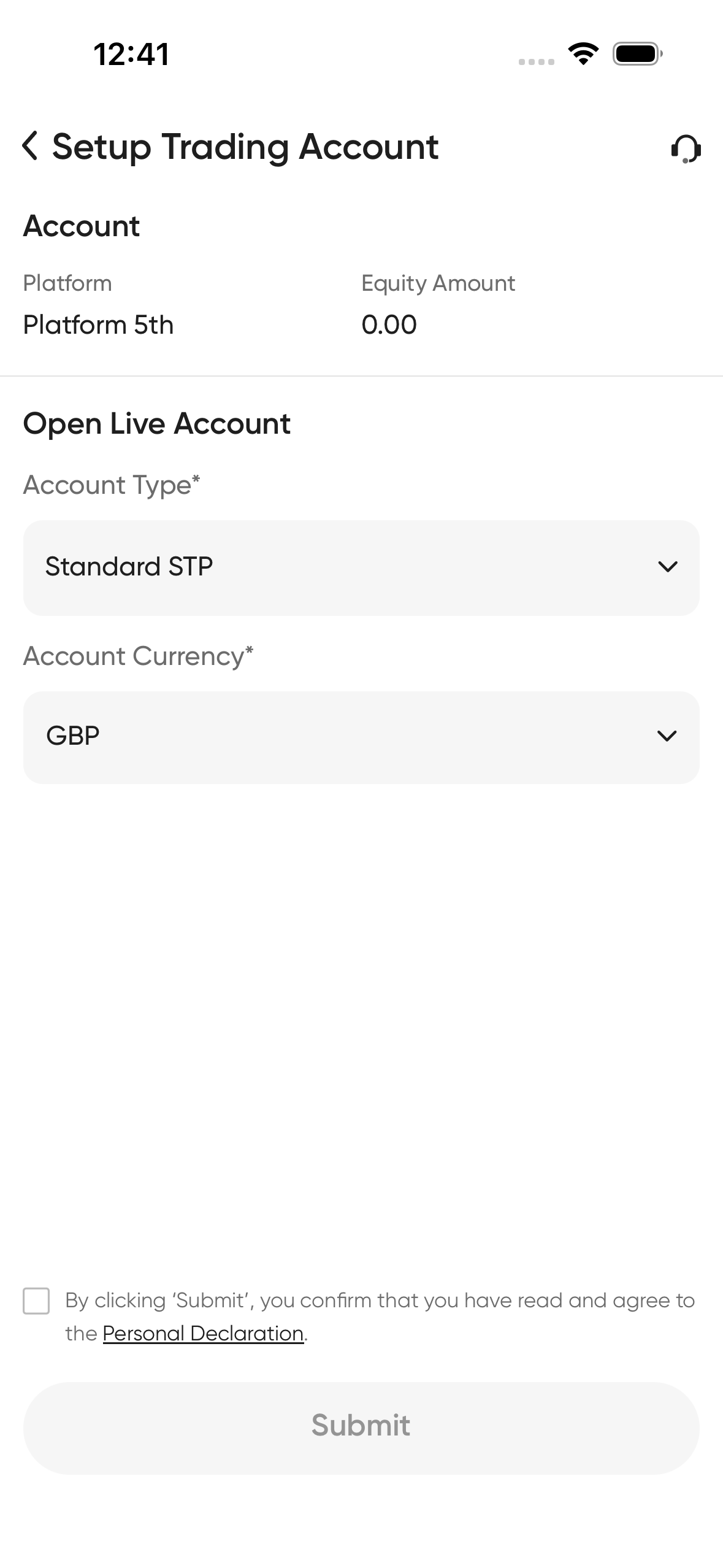
Choose Account Type
Select "Standard STP" account for beginners (no commission, slightly wider spreads) or "Raw ECN" for experienced traders (tight spreads + small commission). Both work with the copier.
Fill in Your Details
Enter your full legal name (as shown on your ID), email address, phone number with country code, and country of residence. Create a strong password.
Complete the Questionnaire
Answer the trading experience questions honestly. This helps Vantage ensure they're providing appropriate services. There are no wrong answers - be truthful about your experience level.
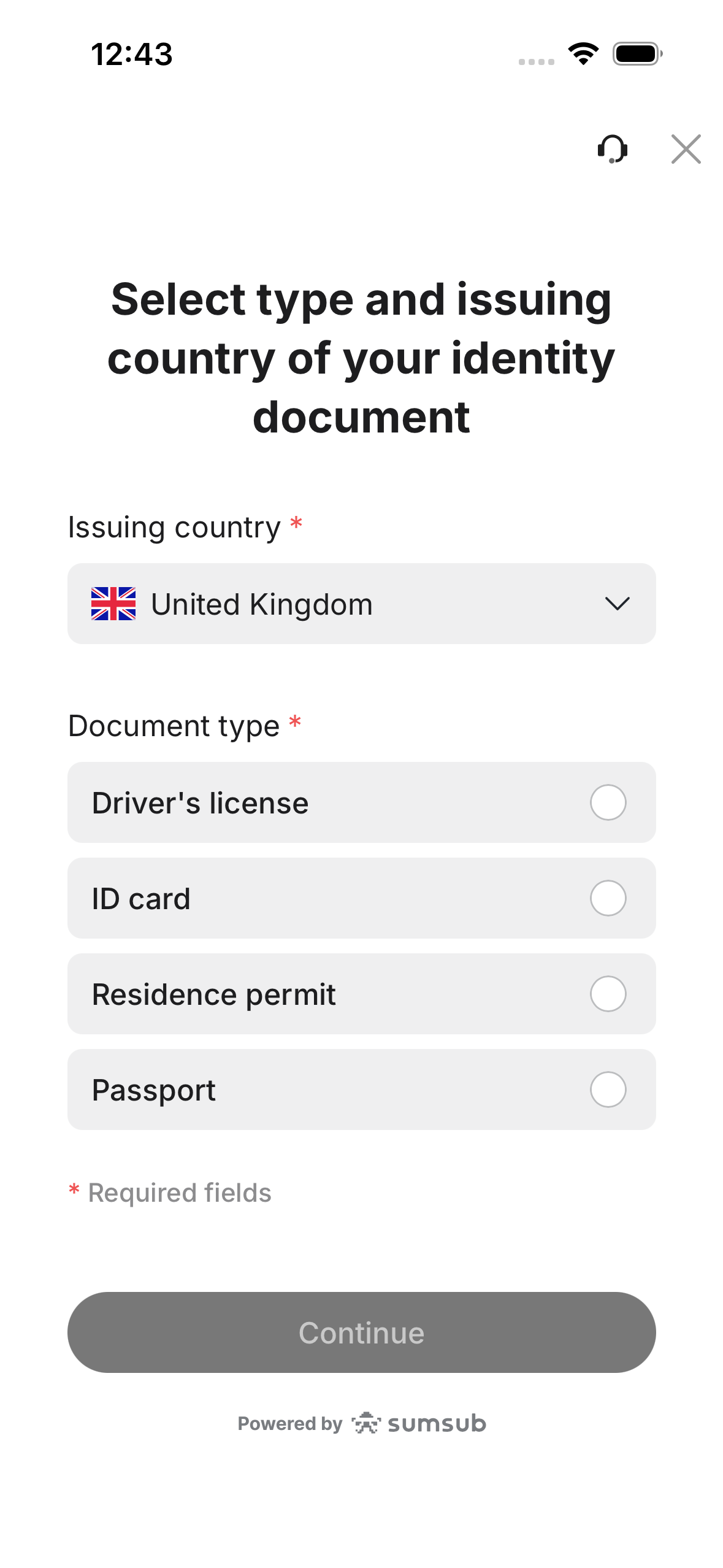
Verify Your Identity (KYC)
Upload a clear photo of your government-issued ID (passport, driver's license, or national ID card). You'll also need proof of address - a recent utility bill or bank statement showing your name and address (within last 3 months).
Wait for Approval
Verification usually takes 1-2 business days. You'll receive an email once approved. Check your spam folder if you don't see it.
Fund Your Account
Once approved, deposit funds via bank transfer, credit/debit card, or e-wallet (Skrill, Neteller). Recommended minimum: $300-$500 for proper risk management with the copier. You can start with less, but smaller accounts have less flexibility.
Important: Save Your Login Details
After registration, Vantage will email you your MT5 login credentials (server, login number, and password). Save these somewhere safe - you'll need them in Step 2.
MetaTrader 5 (MT5) is the trading platform where all trades are executed. It's free to download and available on all devices. This is where you'll see the copied trades appear in real-time.
Available Platforms
Download MT5 from Vantage
Go to your Vantage client portal and find the "Platforms" or "Downloads" section. Download the MT5 version for your device. Using Vantage's version ensures the correct broker servers are pre-configured.
Install the Application
Windows: Run the .exe file and click "Next" through the installer.
Mac: You'll need PlayOnMac or Parallels to run MT5.
Mobile: Search "MetaTrader 5" in App Store or Play Store.
Open MT5 and Find Vantage Server
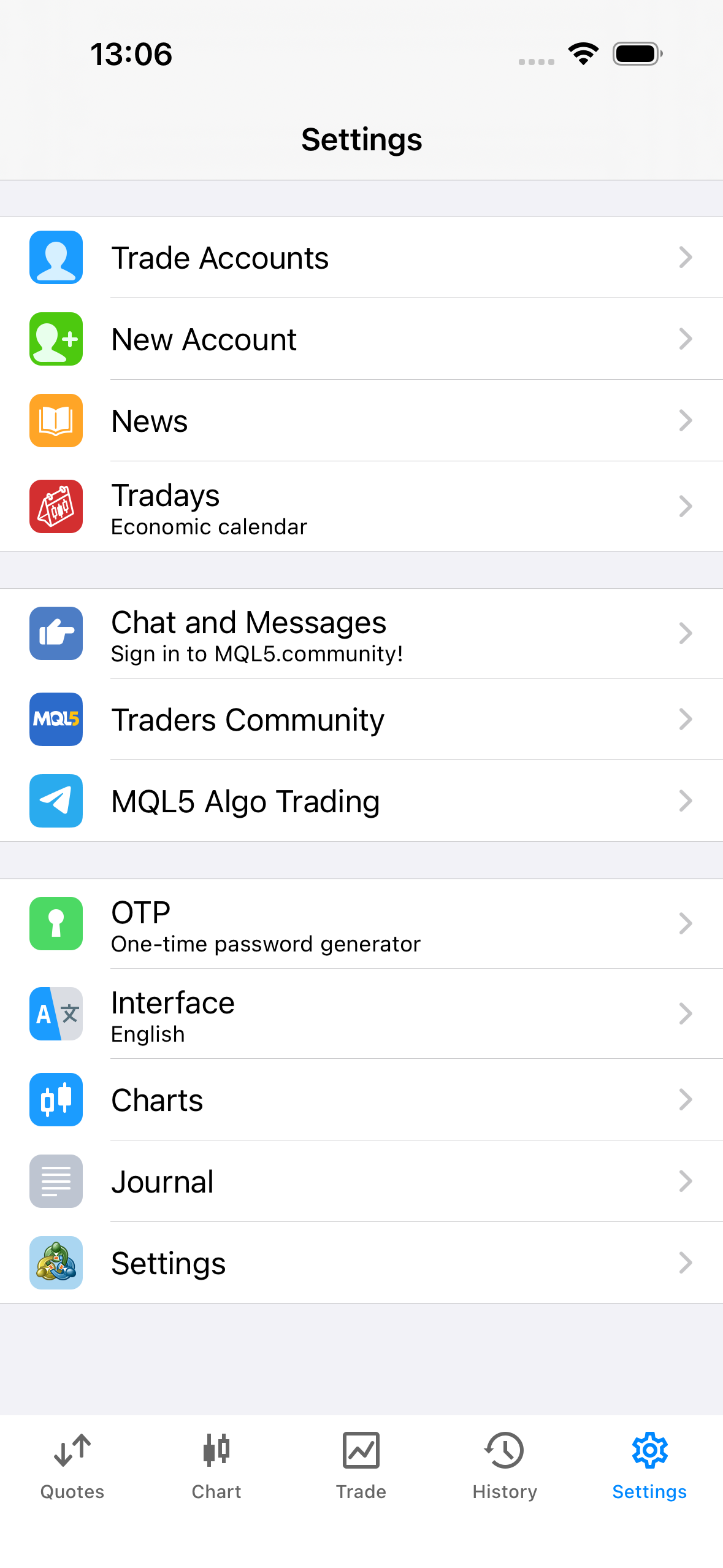
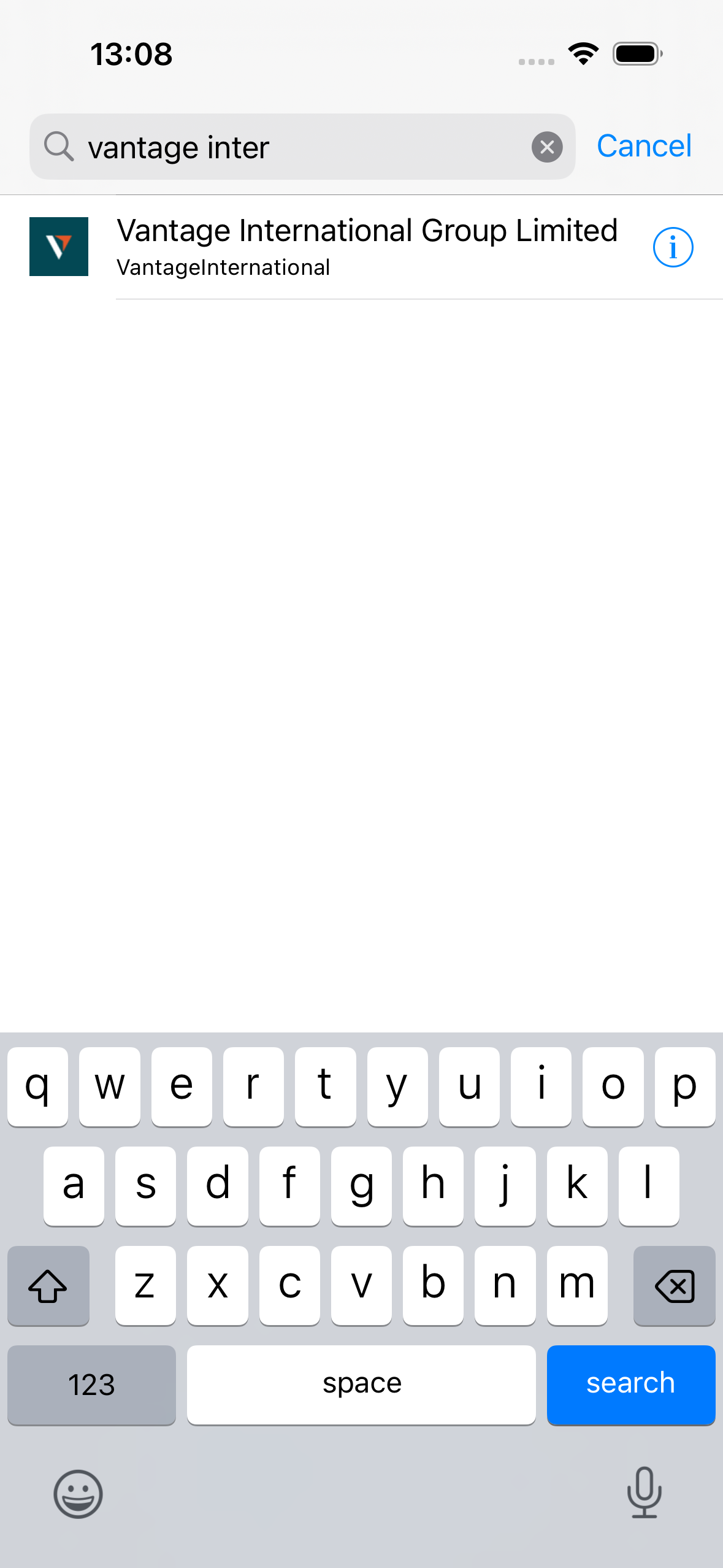
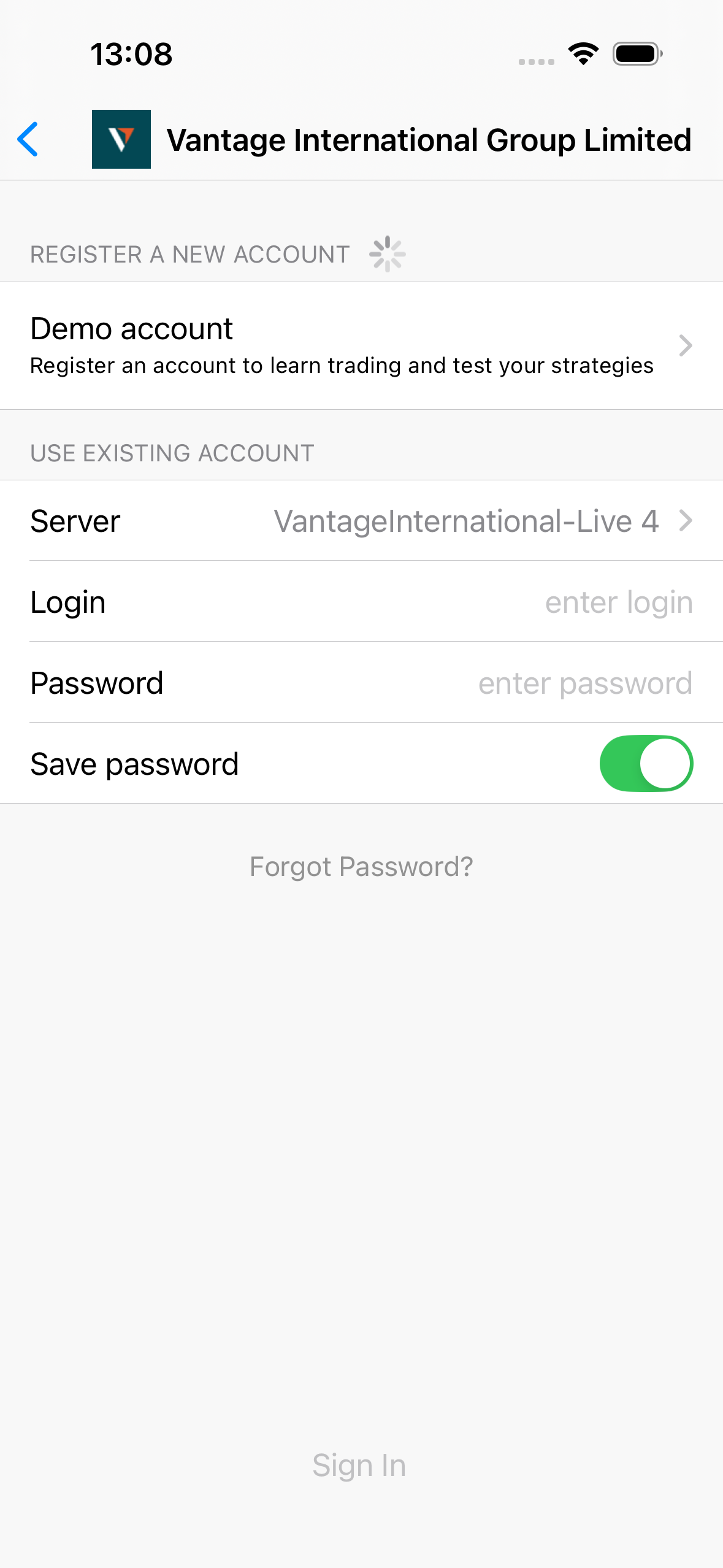
Launch MT5. Go to Settings > Trade Accounts (on mobile) or File > Open an Account (on desktop). Search for "Vantage" and select Vantage International Group Limited.
Enter Your Login Credentials
Under "Use Existing Account", enter:
Server: Select VantageInternational-Live (the number may vary)
Login: Your MT5 account number (from Vantage email)
Password: Your MT5 password (from Vantage email)
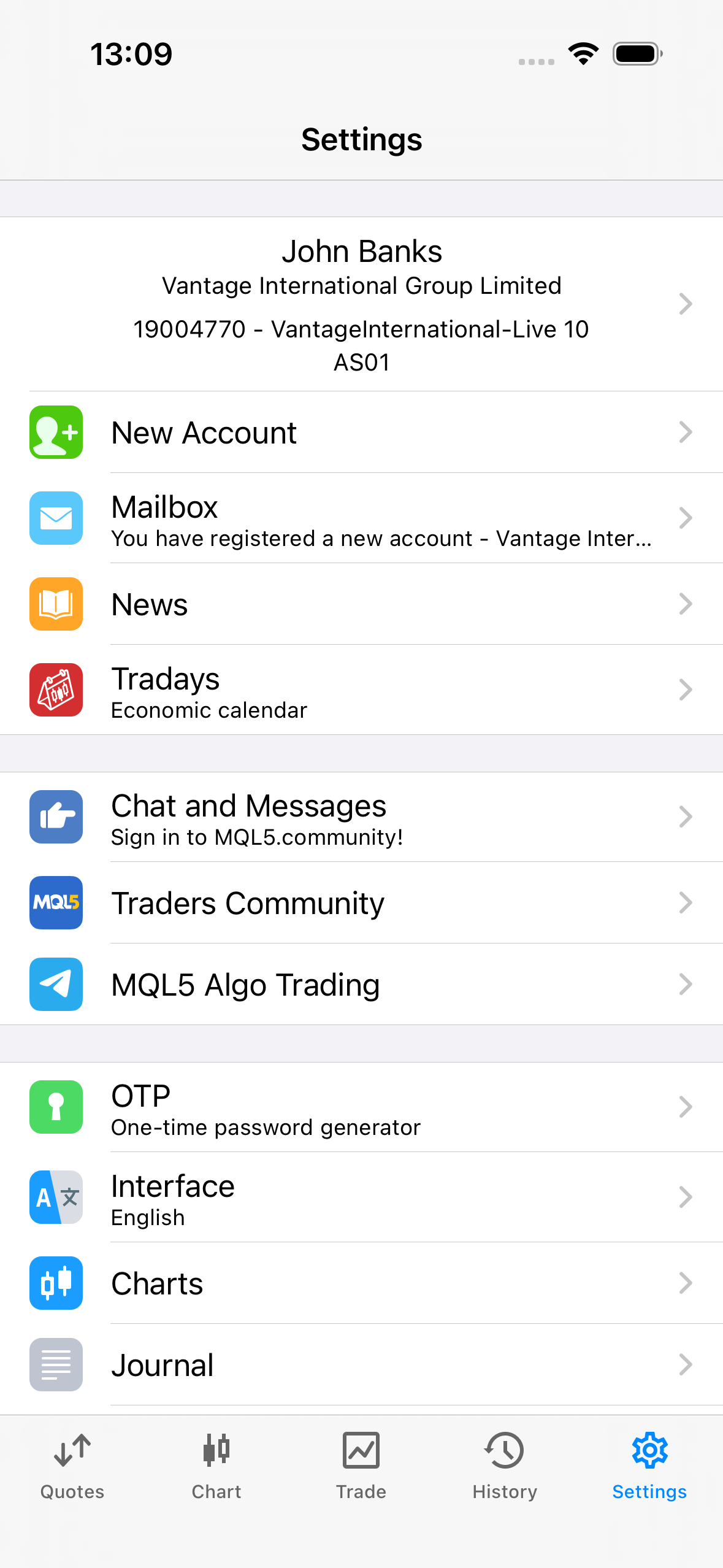
Verify You're Connected
Once logged in, you'll see your account details at the top of the Settings page showing your name, broker, and account number. This confirms you're connected!
Enable Auto Trading
Click the "AutoTrading" button in the toolbar at the top (or press Ctrl+E). The button should turn green. This allows the copier to execute trades automatically on your account.
Keep MT5 Running!
For trades to copy, MT5 must be running and connected. If you close it or your computer sleeps, trades won't copy. Consider using a VPS (Virtual Private Server) for 24/7 operation - Vantage offers free VPS for qualifying accounts.
vSocial is Vantage's built-in copy trading platform. It connects your trading account to signal providers like TradeTeller, automatically copying trades to your account in real-time.
How Copy Trading Works
When I open a trade on my account, vSocial automatically opens the same trade on your account within seconds. When I close, yours closes too. You control the lot size - so a 0.1 lot trade on my account can be 0.01 on yours if you prefer smaller risk.
Log into Vantage Client Portal
Go to secure.vantagemarkets.com and log in with your Vantage account email and password (not your MT5 credentials - these are different).
Navigate to vSocial
In the left sidebar menu, find and click on "vSocial" or "Copy Trading". This opens the vSocial dashboard.
Create a Follower Account
Click "Become a Follower" or "Start Copying". Select the MT5 trading account you want to use for copying (the one you funded). Accept the terms and conditions.
Link Your MT5 Account
You'll be asked to confirm which trading account to link. Select your live MT5 account from the dropdown. If you have multiple accounts, choose the one you want trades copied to.
Verify Connection
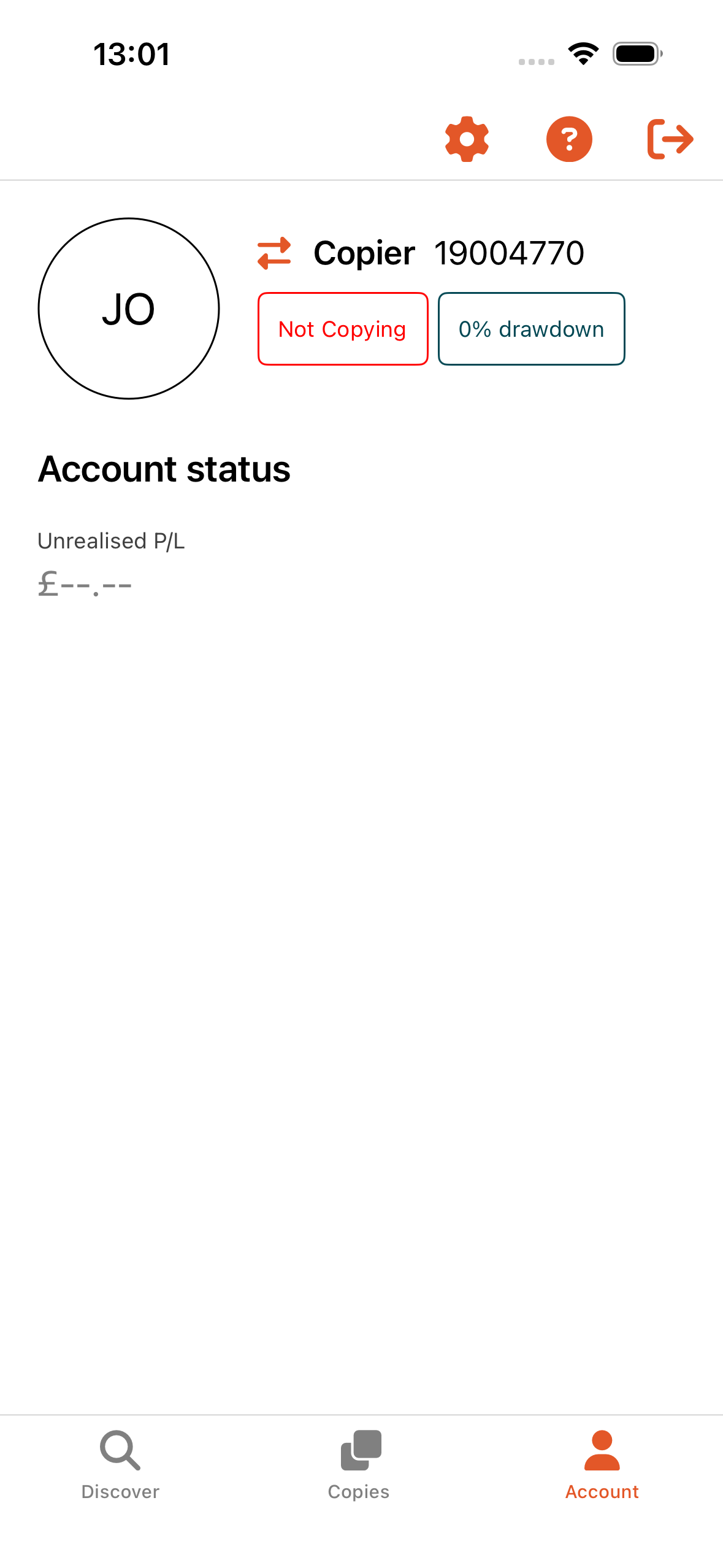
vSocial will show your account as "Connected" or "Active". You'll see your Copier account with your account number and status. If it shows "Not Copying", that's normal - you'll start copying in the next step!
Note: First-Time Setup
If this is your first time using vSocial, you may need to agree to additional terms or complete a short questionnaire. This is normal and only takes a minute.
Final step! Now you'll find and subscribe to the TradeTeller signal provider in vSocial. Once connected, my trades will automatically copy to your account.
Search for TradeTeller
In the vSocial dashboard, go to "Signal Providers" or "Masters" section. Use the search bar to search for "TradeTeller". You should see my profile appear in the results.
Review Performance Stats
Click on my profile to see trading statistics - win rate, total return, drawdown, trading style, and more. Take your time to review and make sure you're comfortable with the strategy.
Click "Copy" or "Follow"
When ready, click the "Copy" or "Follow" button on my profile. This opens the copy settings configuration.
Configure Your Copy Settings
This is the most important step! Set your preferences:
Copy Type: Choose "Fixed Lot" for beginners (easier to understand)
Lot Size: Start conservative! Recommended:
- $300-$500 account: 0.01 lots
- $500-$1000 account: 0.01-0.02 lots
- $1000+ account: 0.02-0.05 lots
Max Drawdown: Set a maximum loss limit (e.g., 20-30% of your account). If reached, copying pauses automatically.
Copy Open Trades: Disable this initially - only copy NEW trades, not ones already open.
Confirm and Activate
Review your settings one more time, then click "Confirm" or "Start Copying". You should see a success message and your status will show as "Copying" or "Following".
Verify in MT5
Open your MT5 platform. When I place a trade, you'll see it appear in your "Trade" tab within seconds. The trade will show in your account with your configured lot size.
Congratulations - You're All Set!
Your account is now connected to TradeTeller Auto Copier. Here's what happens next:
- When I open a trade, it automatically opens on your account within seconds
- When I close a trade, yours closes too at the same price
- You can monitor all trades in your MT5 platform or vSocial dashboard
- You can stop copying at any time from vSocial settings
Need Help?
If you have any issues with setup or can't find the TradeTeller signal, contact us and we'll help you get connected.
tradetellerpro@gmail.com